
Multiplayer with RetroArch
Pokémon Quetzal online tutorial
To play Pokémon Quetzal online, both players must use RetroArch with the gpSP core and configure Game Boy Advance Link Cable connectivity. Follow these steps in order to prepare the emulator, create a room and access multiplayer features.
- 1. Prepare RetroArchInstall gpSP, add the BIOS and enable Pokémon Link Cable mode.Read more ↓
- 2. Set your usernameChoose a name to identify yourself in the server list.Read more ↓
- 3. Create the roomOne player starts the server and the other connects as a client.Read more ↓
- 4. Play onlineSynchronize the game and access battles, trades and cooperative play.Read more ↓
- 5. Migrate a saveConvert a SAV file to the SRM format used by RetroArch.Read more ↓
1. Install and configure RetroArch and gpSP
Both players must complete this initial setup in their emulators.
- Download and install RetroArch from its official website and choose the version for your platform.
- Open RetroArch, go to Load Core → Download a Core and select gpSP.
- Obtain the Game Boy Advance BIOS file named
bios_gba.binand place it in RetroArch's system folder. - Load Pokémon Quetzal through Load Content.
- Open the Quick Menu, go to Core Options → Link Cable Connectivity and select Link Cable - Pokémon Gen3 mode.
- Close RetroArch completely and reopen it to apply the settings.
BIOS folder
- Windows:
C:\RetroArch-Win64\system\ - Android:
retroarch/storage/emulated/0/system/
2. Configure username and network
Each player must set a name before connecting. In RetroArch, open Settings → User and enter the name you will use in the game. The guest player uses this name to find the host's room.
3. Create and join a multiplayer room
Host player
- Open Settings → Netplay → Network.
- Enable Publicly Announce Netplay and Use Relay Server.
- Set a Server Password and share it with the other player.
- Return to the main menu, load the gpSP core, go to Netplay and select Start Netplay Host.
- Load Pokémon Quetzal through Load Content and move your character to any outdoor map.
Guest player
- Load the gpSP core from the main menu.
- Go to Netplay → Refresh Netplay Host List.
- Select the room showing the host's username, enter the password and open Pokémon Quetzal.
- Move your character to an outdoor map.
4. Connect and use online features
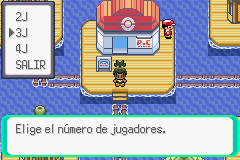
Once both players are on an outdoor map in their games, press Start, go to COOP/MPLAYER and select 2J/2P. A notification appears when the connection is established; both players must press A to synchronize.
Battles and trades
Both players must select the same option under COOP/MPLAYER. Choose Colosseum to battle or Trade Center to trade Pokémon.
Cooperative battles against Trainers
Both players must interact with the same Trainer on the map. After a short waiting notification, the battle starts automatically as a cooperative Double Battle.
5. Migrate a save from SAV to SRM
RetroArch with gpSP uses .srm files. To continue a save from another emulator, such as mGBA or VBA, first convert its .sav.
- Open the SAV and SRM save converter.
- Upload your
.savfile and press Convert! to generate the.srm. - Rename the resulting file to match the Pokémon Quetzal game filename exactly.
- Move the
.srmfile to gpSP's saves folder.
Saves folder
- Windows:
C:\RetroArch-Win64\saves\gpSP\ - Android:
retroarch/storage/emulated/0/saves/gpSP/